PartyStream does not transcode your video. The host's browser loads the file, captures its video and audio tracks, and streams them to each guest. If the browser cannot decode the file, there is nothing to capture, and the stream never starts. So the question is not "does PartyStream support this format" but "can your browser play this file."
The short version
Use MP4 with H.264 video and AAC audio. It works on every browser PartyStream supports, it streams reliably, and it is what most video files already are. If your file is something else, convert it to MP4 before your watch party. The rest of this guide explains why and how.
Why formats matter
A video file is a container (MP4, WebM, MKV) holding video and audio tracks encoded with codecs (H.264, VP9, AAC, Opus). The browser needs to decode both the container and the codecs to play the file, and PartyStream needs the browser to play the file before it can capture and stream it.
VLC can play almost anything because it bundles its own codecs. Browsers do not. They rely on what the operating system and the browser itself support, which is narrower. A file that plays fine in VLC can fail silently in a browser, leaving the host staring at a spinner.
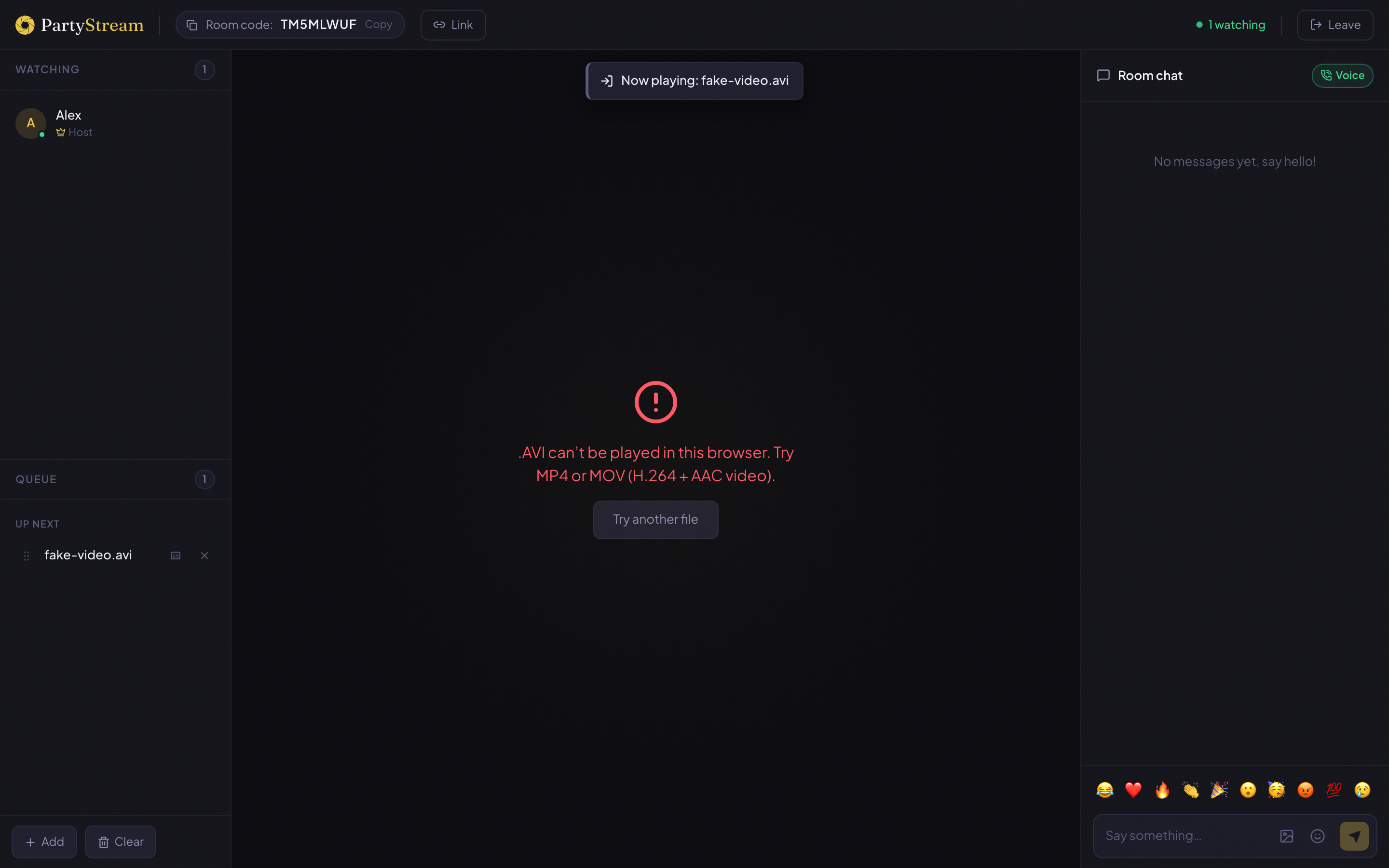
When a file fails to decode, PartyStream shows an error instead of hanging forever:
MP4 (H.264 + AAC)
This is the safe choice. Every major browser (Chrome, Firefox, Safari, Edge) can decode H.264 video and AAC audio in an MP4 container. If your file is already MP4 with these codecs, it will stream. Most videos downloaded from the web, exported from editing software, or recorded from screen capture are already in this format.
H.264 also has hardware encoding support on virtually every device, which means the host's browser can capture and re-encode it efficiently without maxing out the CPU. This matters because the host is encoding and uploading in real time.
WebM (VP8 or VP9)
WebM works in Chrome, Firefox, and Edge. Safari has added WebM support in recent versions, but older Safari releases cannot play it. If everyone in your watch party is on Chrome or Firefox, WebM is fine. If anyone is on Safari, stick with MP4.
VP8 and VP9 are the two common video codecs inside WebM. VP9 produces smaller files at the same quality but takes more CPU to decode, which can matter on slower machines. VP8 is the safer pick if you have a choice.
MKV (Matroska)
MKV is a container, not a codec. It can hold H.264, HEVC, VP9, or almost anything else. The problem is that browsers do not natively decode the Matroska container, regardless of what is inside it.
On Chrome, MKV files with H.264 video inside sometimes play because Chrome is lenient about containers, but it is unreliable and depends on the exact codec flags. On Safari, MKV is rejected outright. Do not rely on MKV working. Convert it to MP4 before your movie night.
What will not work
- HEVC (H.265) — Safari can decode HEVC, but Chrome and Firefox have limited or no support. It will not stream reliably across browsers.
- AV1 — too new and CPU-intensive for reliable real-time capture across browsers. Convert to H.264.
- AVI — an old container that no modern browser decodes natively.
- FLV, WMV, ASF, TS, 3GP, RM, RMVB — none of these play in browsers. Convert to MP4.
- DRM-protected content — movies from iTunes, Google Play, Amazon Prime, and most streaming services use DRM that blocks screen capture. Even if the file plays in the browser, PartyStream cannot stream it. PartyStream works with DRM-free files only.
Browser-by-browser compatibility
Here is what each browser can handle as a host:
- Chrome (desktop): MP4 with H.264/AAC, WebM with VP8/VP9/Opus. MKV with H.264 sometimes works but is unreliable.
- Firefox (desktop): MP4 with H.264/AAC, WebM with VP8/VP9/Opus. MKV is not supported.
- Safari (desktop): MP4 with H.264/AAC, MOV. WebM support is limited and varies by version. MKV is not supported.
- Edge (desktop): Same as Chrome, since it is Chromium-based.
- Phones and tablets (guests): Guests do not need to decode the file. They receive a stream from the host, who already encoded it. So guests can join from any modern mobile browser regardless of format.
If your group mixes browsers, use MP4 with H.264 and AAC. It is the only format every browser agrees on.
Convert with ffmpeg
ffmpeg is a command-line tool that converts between video formats. It is free and available on Mac, Windows, and Linux. If you do not have it installed:
- Mac:
brew install ffmpeg - Windows: Download from ffmpeg.org and add it to your PATH, or use
winget install ffmpeg - Linux:
sudo apt install ffmpeg(Debian/Ubuntu) or your distro's package manager
The most reliable conversion is to MP4 with H.264 video and AAC audio. This command works for almost any input file:
ffmpeg -i your-video.mkv -c:v libx264 -pix_fmt yuv420p -c:a aac your-video.mp4What each flag does:
-i your-video.mkv— the input file. Replace with your actual filename.-c:v libx264— encode the video track as H.264.-pix_fmt yuv420p— use a pixel format every browser can decode. Without this, ffmpeg may pick a profile that Safari cannot play.-c:a aac— encode the audio track as AAC.your-video.mp4— the output file. The .mp4 extension tells ffmpeg to use the MP4 container.
If the input file already has H.264 video and AAC audio and you just need to change the container (say, from MKV to MP4), you can skip re-encoding and just copy the streams. This is much faster:
ffmpeg -i your-video.mkv -c:v copy -c:a copy your-video.mp4This only works if the codecs inside the MKV are already H.264 and AAC. If they are not, you will get an error and need the full re-encode command above.
If the file is large and you want to reduce its size while converting, lower the resolution or the bitrate:
ffmpeg -i your-video.mkv -c:v libx264 -pix_fmt yuv420p -crf 23 -vf scale=1280:-2 -c:a aac your-video.mp4-crf 23 controls quality (lower is better, 18 to 28 is the useful range). -vf scale=1280:-2 scales the video to 1280 pixels wide, keeping the aspect ratio. This is handy if the original is 4K and you want to save upload bandwidth during the watch party.
Convert with HandBrake
If you prefer a graphical tool over the command line, HandBrake is a free video converter for Mac, Windows, and Linux.
- Download HandBrake from handbrake.fr and open it.
- Drag your video file into the window, or click Open Source and pick the file.
- Under Summary, set the format to MP4.
- Under the Video tab, set the codec to H.264 (x264).
- Under the Audio tab, make sure the codec is AAC.
- Click Start Encode at the top. The converted MP4 lands in your chosen output folder.
HandBrake's default settings produce a browser-safe MP4. If you want a smaller file, lower the Constant Quality slider under the Video tab (higher number means smaller file and lower quality, 20 to 24 is a good range).
Convert with QuickTime (Mac)
If you are on a Mac and just need a quick conversion without installing anything:
- Open the video file in QuickTime Player.
- Go to File > Export As > 1080p (or whichever resolution matches your file).
- Save the exported file. QuickTime produces an MP4 with H.264 video and AAC audio.
This is the simplest option but gives you no control over bitrate or quality. For anything more than a one-off conversion, ffmpeg or HandBrake is better.
Subtitles (.srt and .vtt)
PartyStream does not transcode subtitles into the video. They ride alongside it as a separate small text file. You attach that file to a queued video, and the captions appear over the video for everyone in the room. Each person can toggle them off with the CC button in the player controls.
Two formats work: .srt (the common one, used by most movie downloads and subtitle sites) and .vtt (the web standard, sometimes called WebVTT). PartyStream reads either one. If you only have an .srt file, that is fine, no conversion needed on your end.
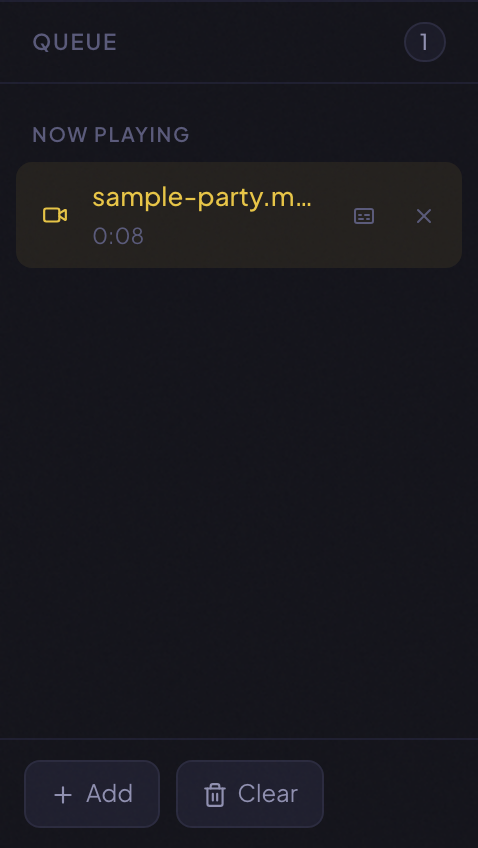
Captions stay attached to that video, so they appear automatically whenever it plays, even after a refresh or if you switch to another video and come back. They only apply to uploaded video files, not YouTube links. YouTube loads on each viewer's browser separately, so use the CC button inside the YouTube player for those.
If you still get an error
If you converted the file and PartyStream still shows an unsupported format error, check these things:
- Try a different browser. If you are hosting from Safari, switch to Chrome or Firefox. Safari is the strictest browser for video capture.
- Check the file actually plays in your browser. Open the file directly in Chrome or Firefox (File > Open or drag it into a tab). If it does not play there, it will not stream in PartyStream either.
- Re-convert with the full ffmpeg command. If you used the stream-copy shortcut (
-c:v copy), the codecs inside the original file might not be H.264 and AAC. Use the full re-encode command with-c:v libx264 -c:a aacinstead. - Check the audio codec. Some files have video that works but audio that does not (like PCM or DTS audio). The
-c:a aacflag in the ffmpeg command handles this, but if you used a different tool, make sure the audio is AAC.
Got your file ready?
Create a room