You and your friends are in different cities, maybe different time zones. You want to watch the same film at the same time and react together, not by texting "wait did you see that" three minutes after it happened. PartyStream handles the sync and the chat. You handle the rest.
Pick a time that works
Time zones are the first thing to sort out. Find a slot where everyone is awake and free, and agree on it ahead of time. A shared calendar invite or a group chat poll works. Give yourself a 10-minute buffer before the start time for the "everyone click the link" dance that always happens.
If your group spans more than a few time zones, pick a time that falls in the evening for the latest zone and the morning or afternoon for the earliest. A 9 PM film for the west coast is a midnight film for the east coast, which is fine for night owns but rough for early risers.
Pick a film everyone can play
One person (the host) picks a video file on their computer and streams it to everyone else. So you need a file, not a Netflix link. That means a movie you downloaded, a home video, a creative-commons film, or a screen recording. DRM-protected content from streaming services will not work because the browser blocks screen capture of it.
The file needs to be in a format the browser can decode. MP4 with H.264 video and AAC audio is the safe bet. WebM with VP8 or VP9 also works. If your file is in another format, convert it before the movie night so you are not troubleshooting while everyone waits. See our video formats guide for conversion steps.
Pick the film as a group. A shared poll or a rotation where someone different picks each week keeps it fair. Keep the runtime in mind: a 3-hour film with 4 time zones is a commitment.
Create the room
When it is time to start, the host opens partystream.com and scrolls to the action section at the bottom of the landing page. In the Create a room card, type a display name. This is what everyone sees in the chat and the participant list. It can be anything up to 30 characters. Click Create room and you are in. The server hands back a random 8-character room code.

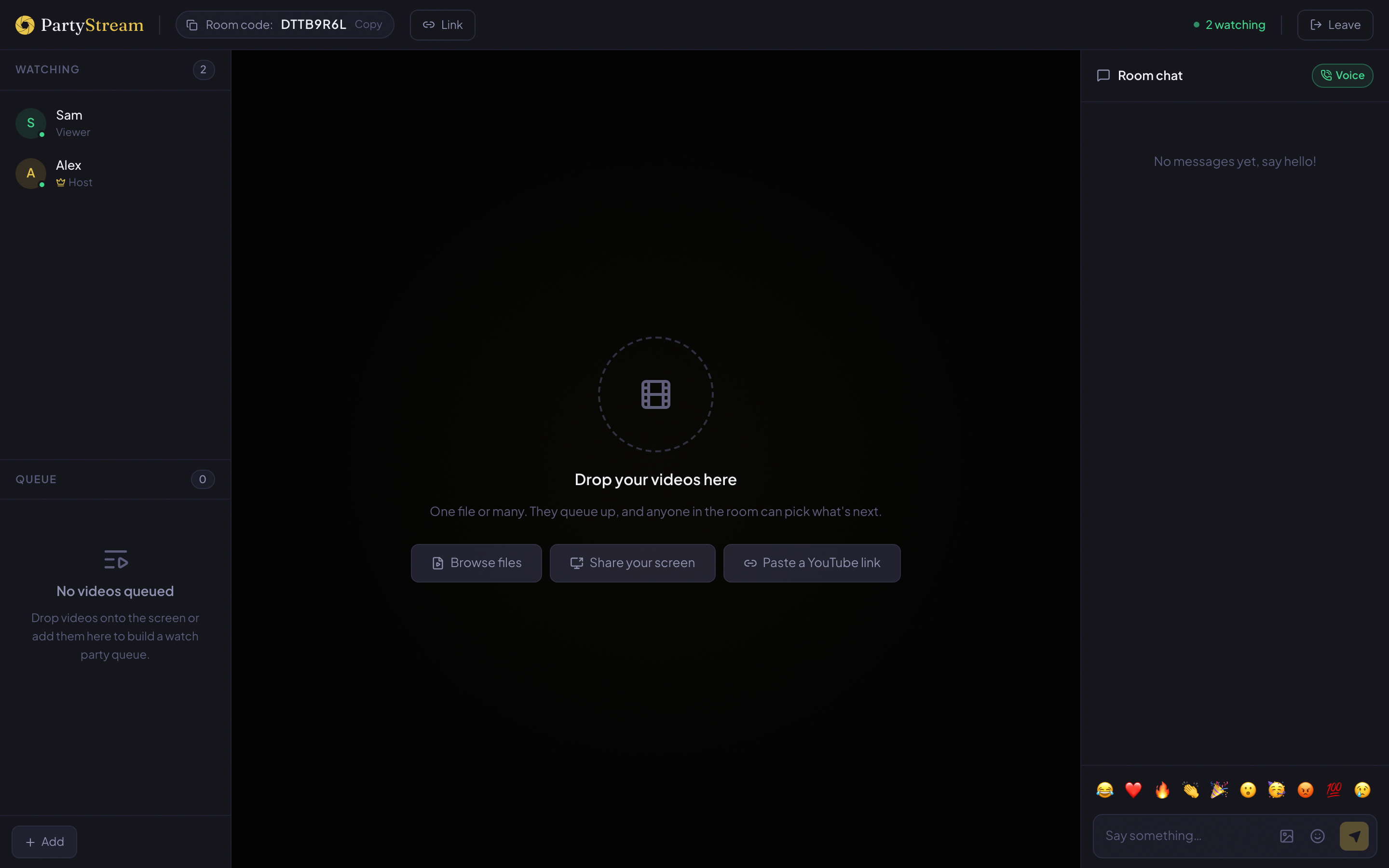
You are now in the room view. The center shows a drop zone waiting for a video, and the room code is in the top bar.
Share the code
The room code is in a pill in the top bar, labeled Room code: followed by 8 characters. Click the pill to copy the code. Next to it, the Link button copies a full invite URL that drops guests straight into the room without typing the code.

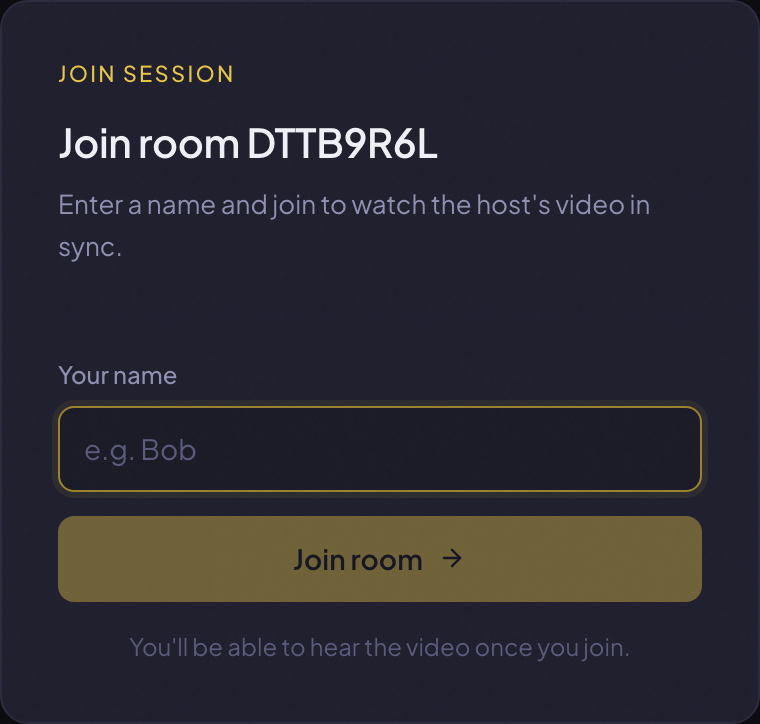
Paste the link into your group chat. Your friends click it, type a name, and they are in. There is no app to install and no account to create. If someone only has the code (no link), they can use the Join a room card on the landing page instead.
Add the video
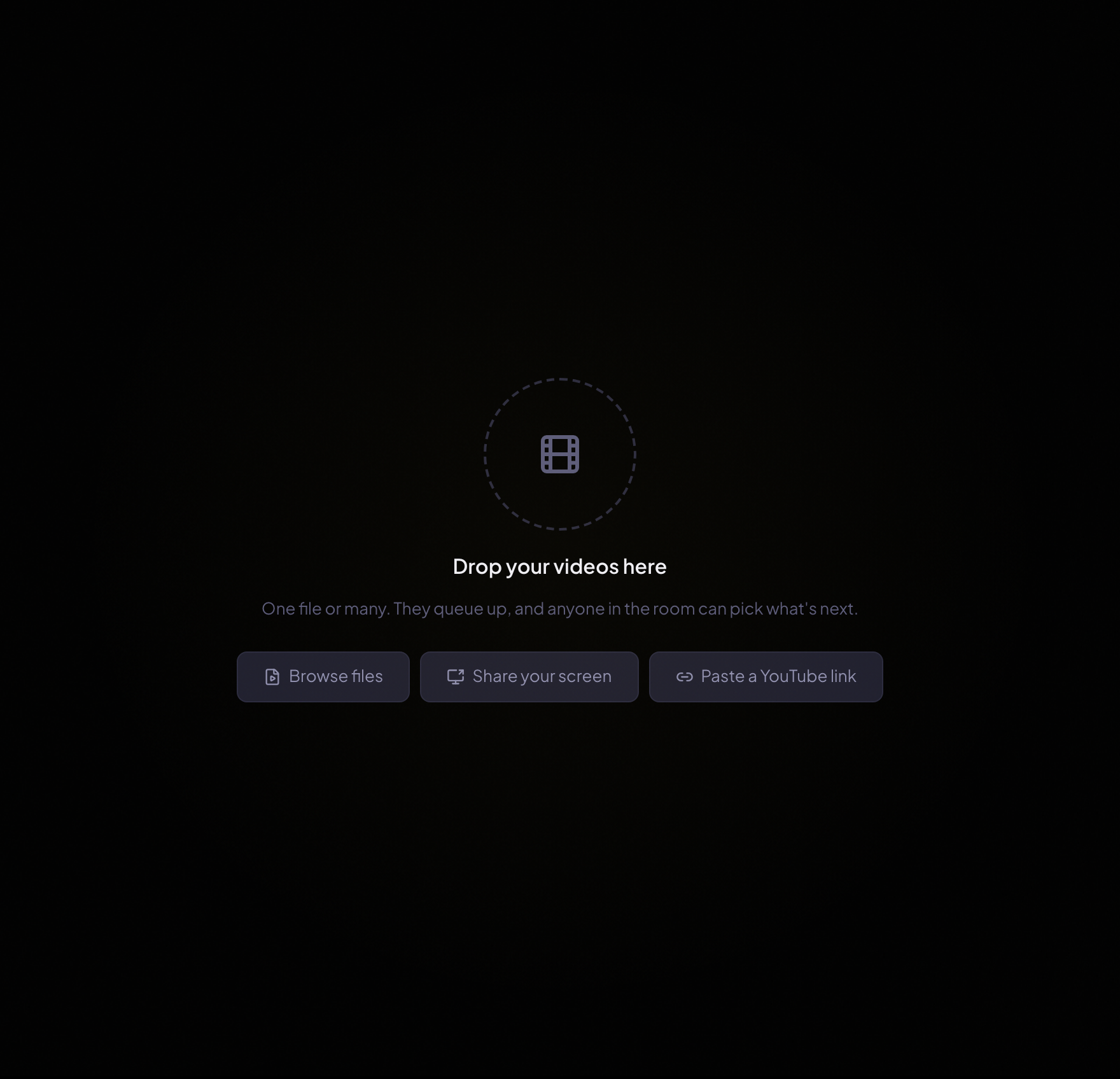
Back on the host side, drag your video file onto the drop zone in the center, or click Browse files to pick one. If you want to watch a YouTube video together, click Paste a YouTube link and paste the URL. If you want to stream a browser tab or your screen instead, click Share your screen.
For a second or two you will see a Starting stream spinner while the host browser captures the video and audio tracks and negotiates peer connections with each guest. When it clears, the video frame is ready.
If you are watching more than one thing, add all the files at once. They queue up in order, and the first one becomes the current video. When it finishes, PartyStream auto-advances to the next. See step 7 in our full how-to guide for details on the queue.
If the film came with a subtitle file, attach it before you press play. Hover the video in the queue and click the small CC button on that row, then pick the .srt or .vtt file. The captions show up over the video for everyone, and each person can toggle them off with the CC button in the player. Useful for foreign films, quiet dialogue, or anyone in a noisy room. See our formats guide for the file details.
Press play
Click the play button. That single click starts the film for everyone. Play, pause, and seek are all host controls, so when you skip forward, every guest jumps to the same spot within half a second. Guests cannot control playback themselves, which is what keeps everyone on the same frame.
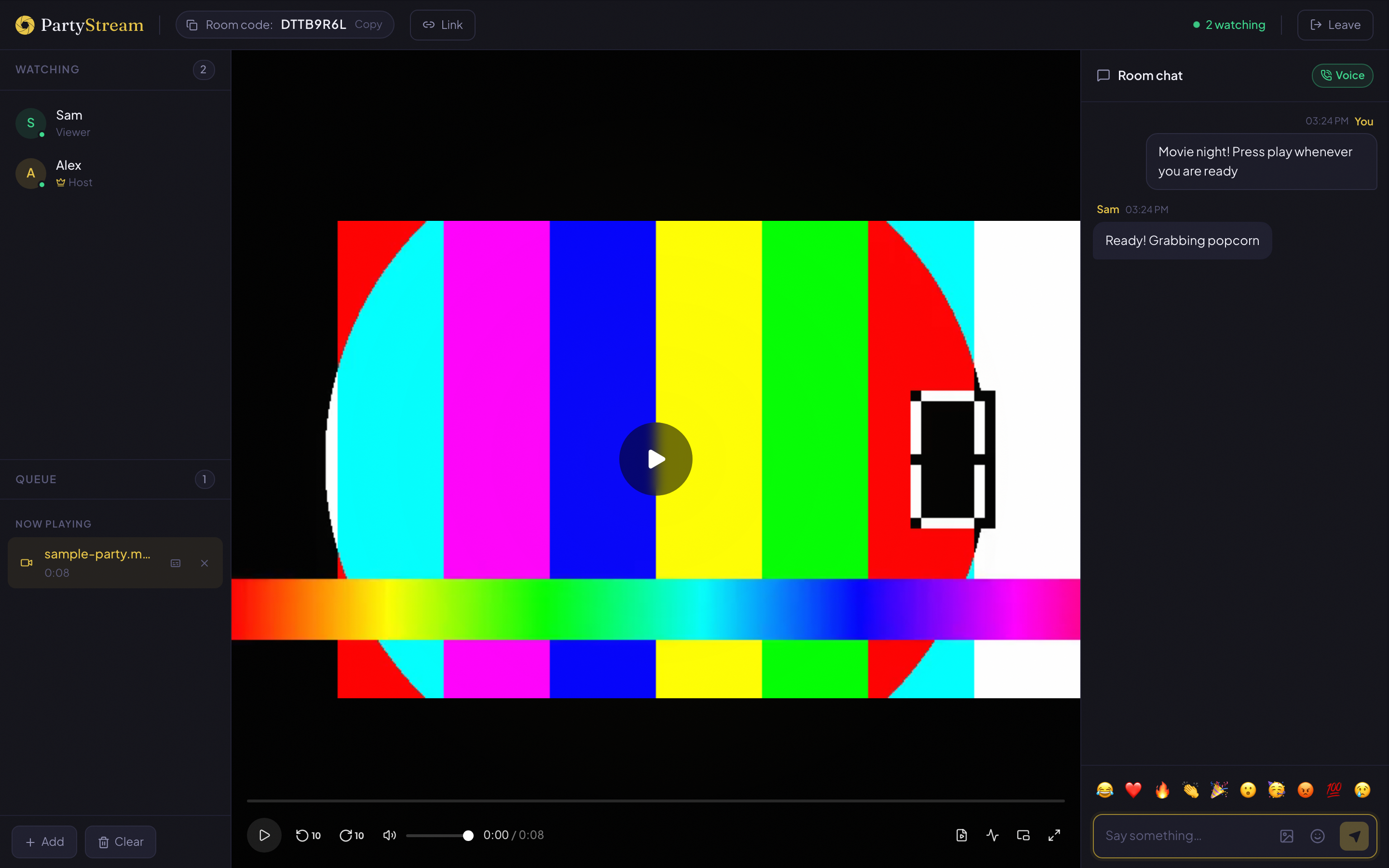
If someone needs a bathroom break, pause. Everyone pauses. When they are back, press play and everyone resumes from the same spot. This is the whole point of a watch party: nobody is texting "where are you at?" halfway through.
Chat and react during the film
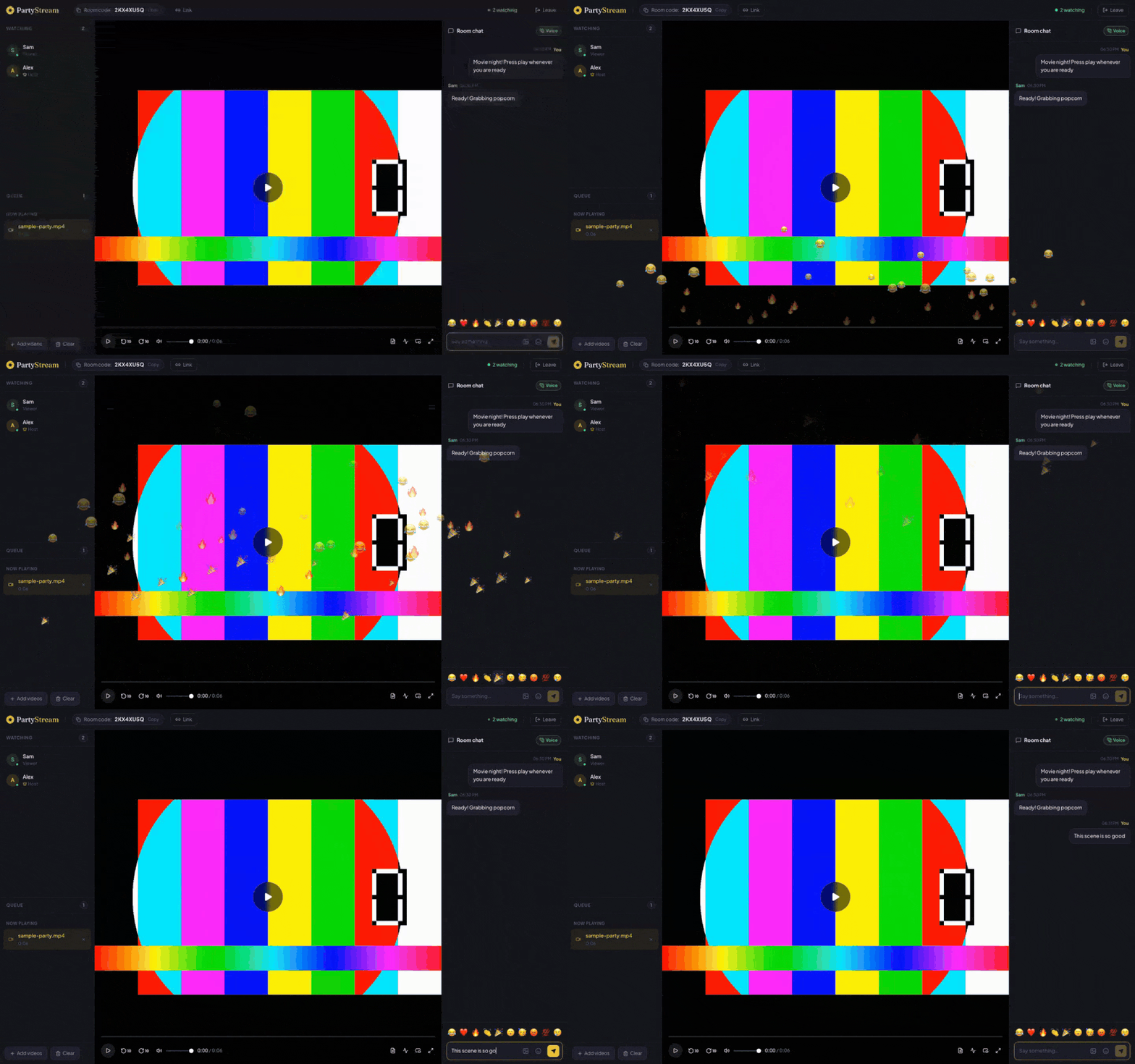
The right sidebar is the chat. Type a message and press Enter. It shows up for everyone in real time. There is no chat history, so late joiners only see messages sent after they arrived. Keep that in mind if someone joins 20 minutes in and asks what they missed.
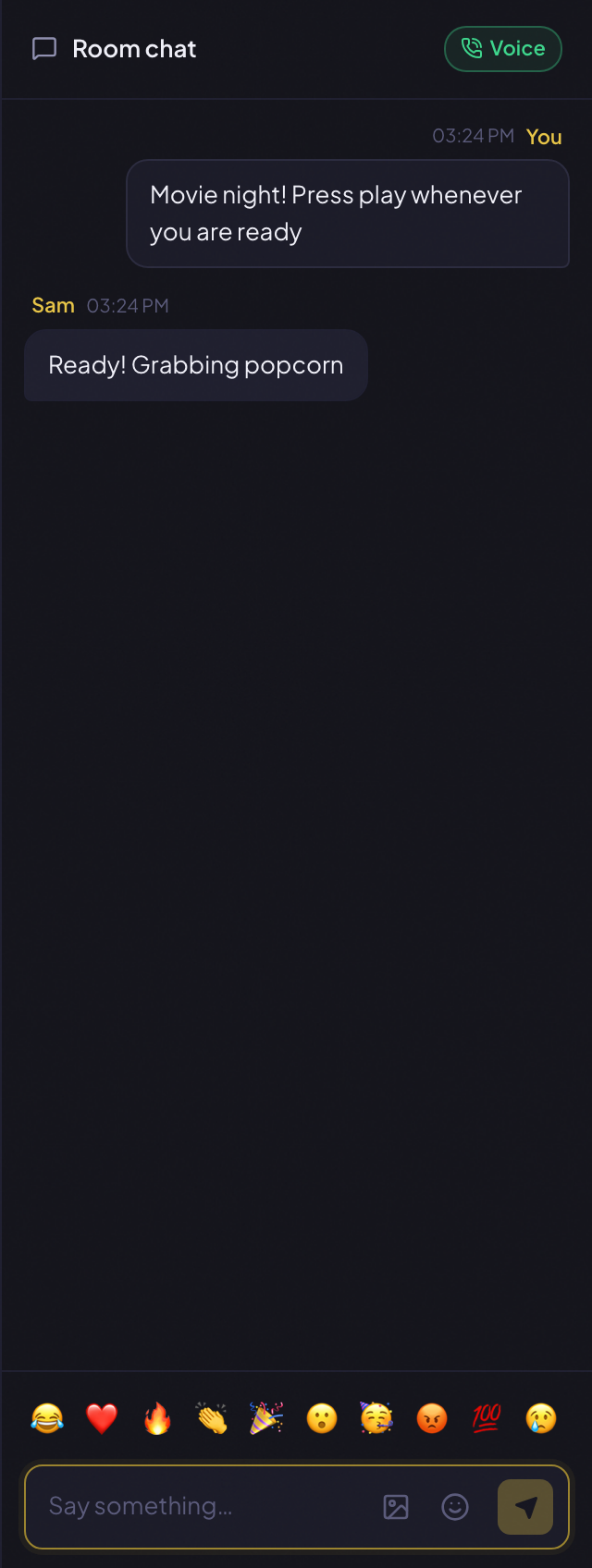
Above the text input is a row of reaction emoji. Click one and it floats up across everyone's screen. It is the closest thing to throwing popcorn at the screen when a jump scare gets you. The smiley button opens a full emoji picker, and the image button opens a GIF search.
Keep it fun
A few things that make long-distance movie nights better:
- Rotate the host. A different person picks and hosts each week. It spreads the bandwidth burden and keeps the film selection fresh.
- Keep the host tab in the foreground. Browsers throttle background tabs, which can stall the video stream. If the host switches to another app, guests might see a frozen frame.
- Use voice chat if it is enabled. Text chat is great for quick reactions, but voice is better for the "did you see that" moments. The voice button is in the chat header. One click turns on your mic.
- Have a backup plan. If the host's internet drops, the room ends. Agree on a backup (a different host, a different time) before you start, especially for longer films.
- Test the file beforehand. Play the first 10 seconds of the video file in your browser before the movie night. If it does not play, convert it to MP4 before everyone is waiting.
- Attach subtitles if anyone needs them. Heavy accents, quiet dialogue, a loud room. Hover the video in the queue and click the CC button on the row. Pick the .srt or .vtt file. Captions show for everyone, and each person can switch them off if they do not need them.
- Snack coordination. Not technically a PartyStream feature, but telling everyone to grab snacks before pressing play is part of the job.
Ready to host your own?
Create a room