Discord screen share is the default for a lot of gaming groups and friend servers. You join a voice channel, click Share Your Screen, and everyone in the channel sees it. It works, and if your group is already on Discord, it is the path of least resistance. PartyStream is purpose-built for watch parties, which means it does some things better and some things worse.
The short version
Use Discord screen share if your group is already in a Discord voice channel, you want voice chat alongside the video, and you do not care about perfect sync or per-guest quality controls.
Use PartyStream if you want a dedicated watch party experience with real playback sync, per-guest quality settings, a queue for multiple videos, text chat with emoji reactions, and no install. It is better for movie nights where the film is the focus, not the voice call.
How each one works
Discord screen share captures a window, a browser tab, or your whole screen and sends it to everyone in the voice channel. The video goes through Discord's servers, which transcode and distribute it. There is no playback sync: you start the video in your player, and everyone sees your screen. If you pause, everyone sees a paused screen. If you seek, everyone sees you seek. It works because the video is literally your screen, not a synced stream.
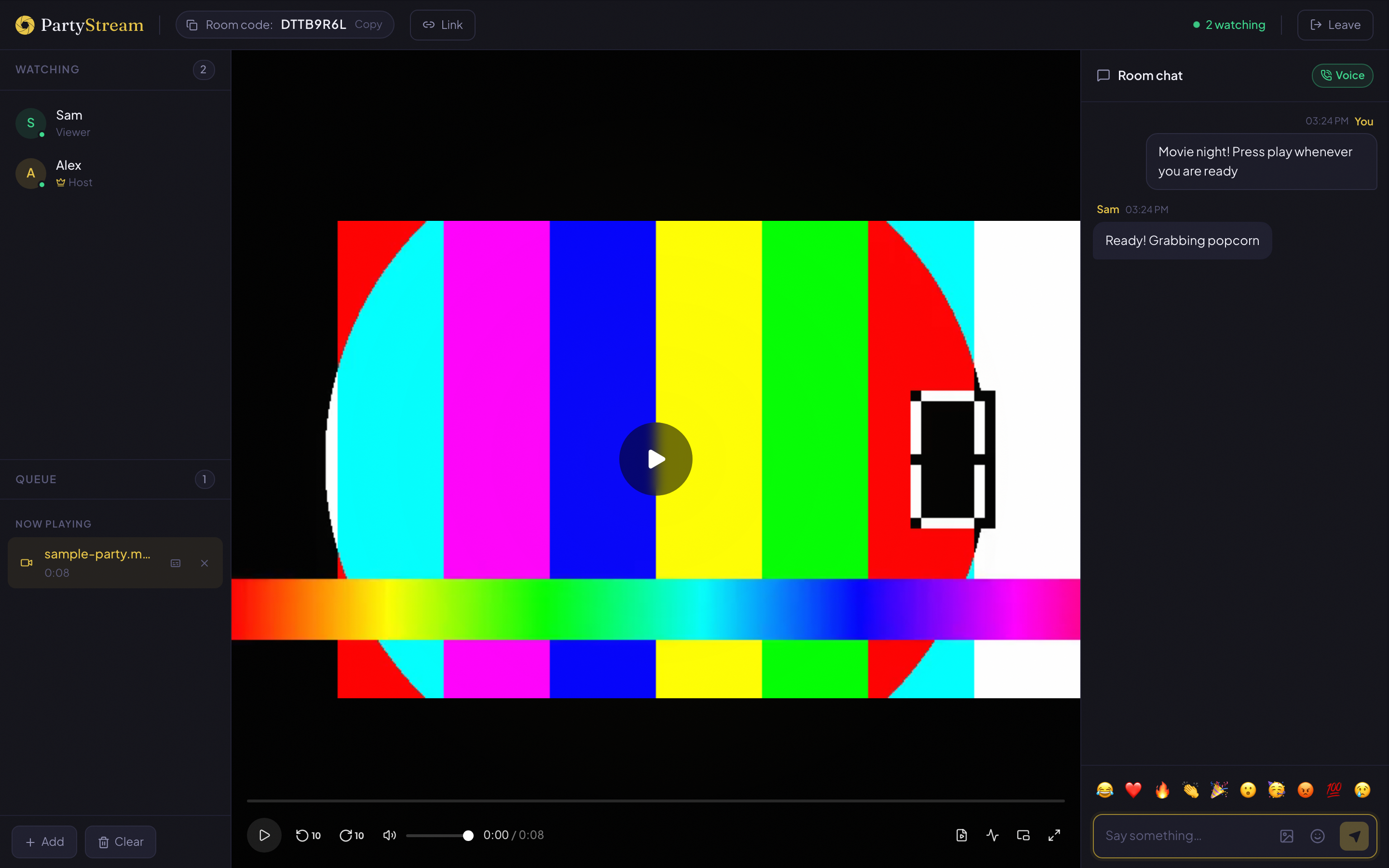
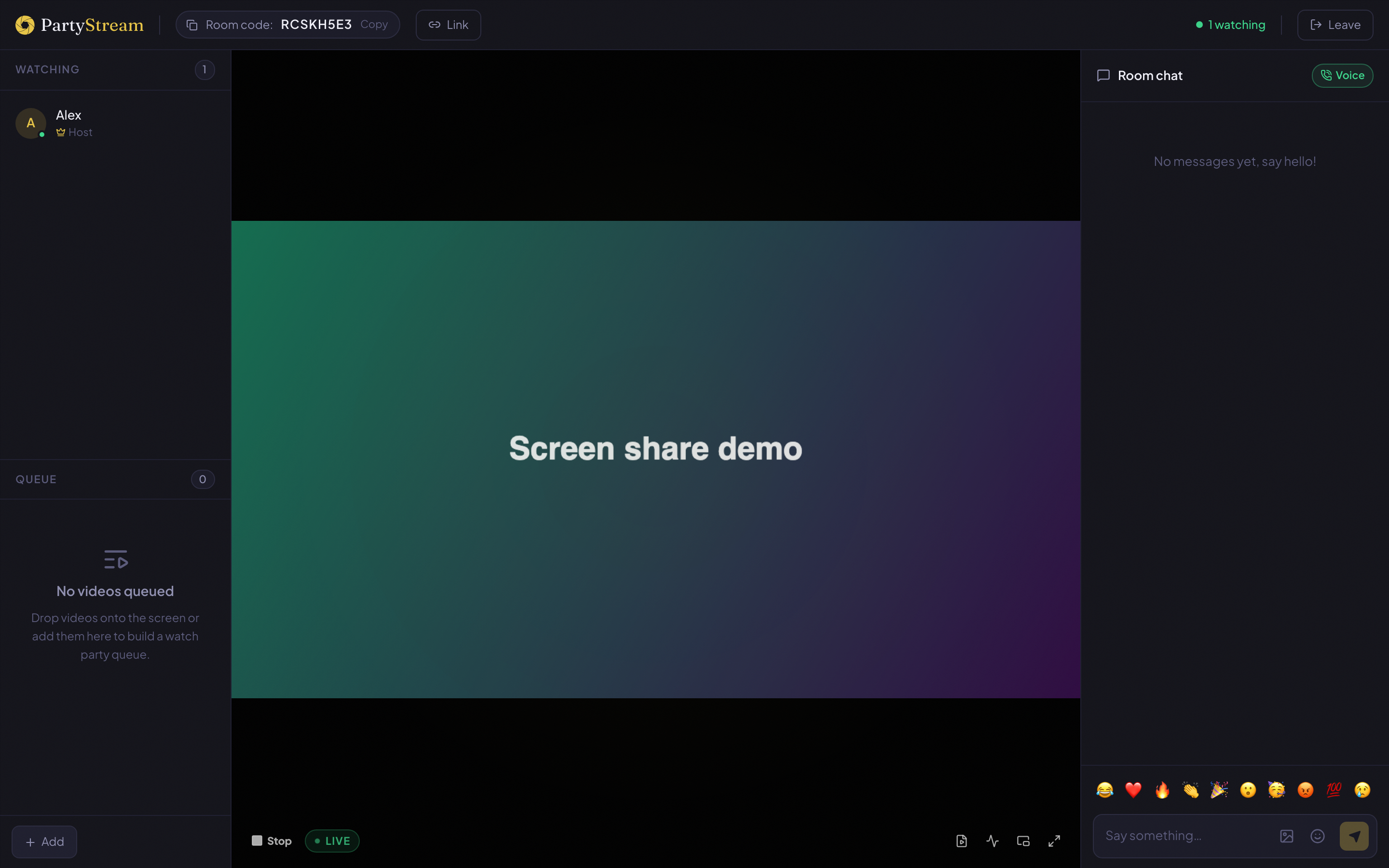
PartyStream has two modes. File mode: the host picks a video file, and the browser captures and streams the video and audio tracks directly to each guest. Screen share mode: the host shares a screen or browser tab, similar to Discord. In file mode, play, pause, and seek are synced across all guests within half a second. In screen share mode, sync is implicit (everyone sees the host's screen).
Video source and quality
Discord streams whatever is on your screen. The quality depends on your Discord Nitro subscription (free users get 720p at 30fps, Nitro unlocks 1080p at 60fps). The video goes through Discord's servers, which add latency and can degrade quality during peak hours. Audio is captured from the shared application or the system, and it goes through the same server pipeline.
PartyStream in file mode streams directly from the host's browser to each guest. There is no server in the middle, so there is no server-side transcoding or added latency. The host can stream up to 1080p, and each guest picks their own quality setting (Auto, High, Medium, Low) to match their connection. Auto mode adjusts to your connection speed automatically, so a guest on a slow connection still gets a watchable picture.

In screen share mode, PartyStream works more like Discord: the host shares a tab or desktop, and guests see it. The difference is that PartyStream sends the screen share directly to guests, while Discord routes it through its servers.
Sync and playback control
This is where the two diverge most.
Discord has no playback sync. The host plays a video in a player on their screen, and everyone sees the host's screen through the screen share. If the host's player stutters, everyone sees the stutter. If the host accidentally clicks the timeline, everyone jumps. There is no mechanism to sync a local video file across multiple people.
PartyStream in file mode has real sync. When the host presses play, every guest's player starts within half a second. When the host pauses, everyone pauses. When the host seeks, everyone jumps to the same timestamp. The host periodically broadcasts the current position so anyone who drifted can catch up. Guests cannot control playback, which prevents accidental skips and keeps everyone on the same frame.
For a casual "let me show you this clip" moment, Discord's lack of sync does not matter. For a 2-hour movie where everyone needs to be on the same scene, it matters a lot.
Chat and voice
Discord is built around voice. You join a voice channel, and everyone can talk. Screen share is an addition to the voice call, not a standalone feature. Text chat happens in the channel alongside the voice, but it is secondary to the voice conversation. If your group wants to talk over the movie, Discord is better at this.
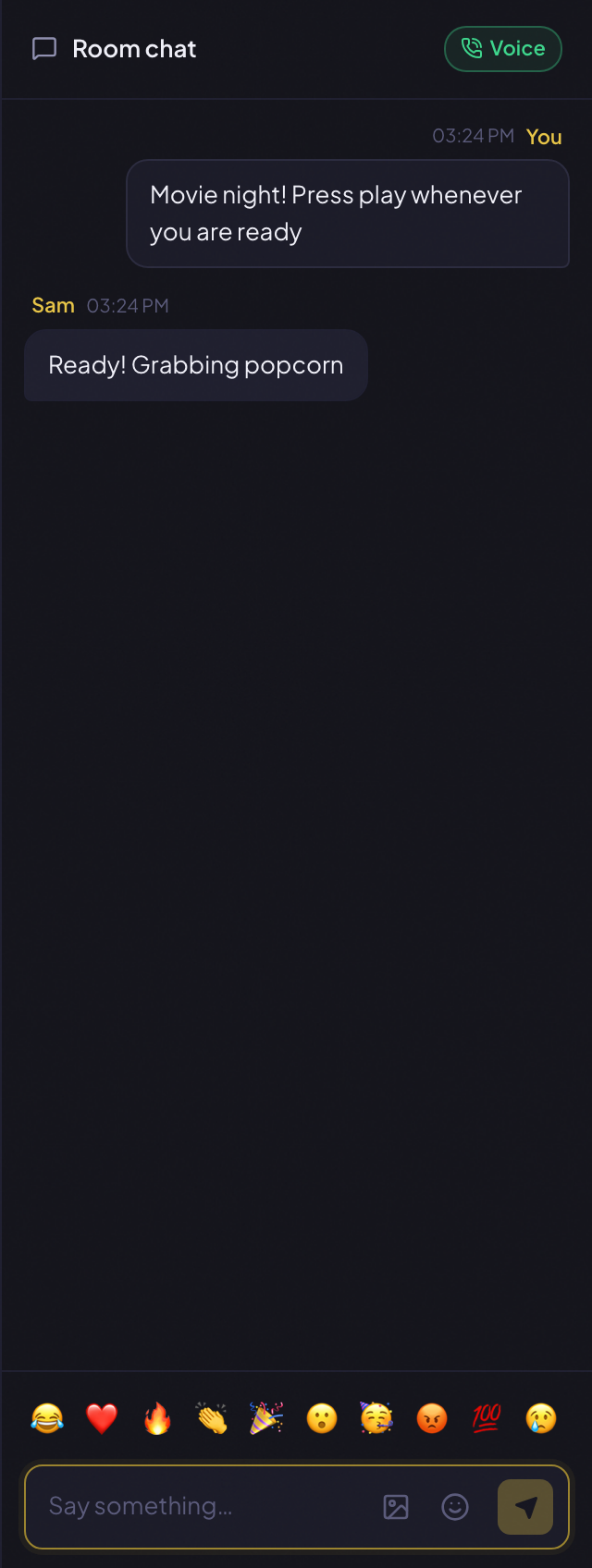
PartyStream is built around text chat with the video. The chat panel runs alongside the video with text messages, floating emoji bursts, a full emoji picker, and GIF search. Voice chat is available as an option (a join-voice button in the chat header), but it is layered on top of the watch party, not the foundation. If your group prefers text reactions over voice conversation during a film, PartyStream is better at this.
Mobile support
Discord has a mobile app. Guests can join the voice channel and watch the screen share from their phone. The experience is decent but the screen share quality on mobile is limited, and the UI is designed for voice first.
PartyStream runs in a mobile browser. Guests can join from any phone or tablet by opening the invite link. No app to install. The interface adapts to smaller screens: sidebars become overlays, and controls stay visible on touch devices. The host needs a desktop browser, but guests can use whatever they have.
Setup and friction
Discord requires the Discord app (desktop or mobile) and a Discord account. Everyone needs to be in the same server or DM group, and in the same voice channel. If your group is already on Discord, this is zero friction. If not, it is a sign-up, a download, and a server invite.
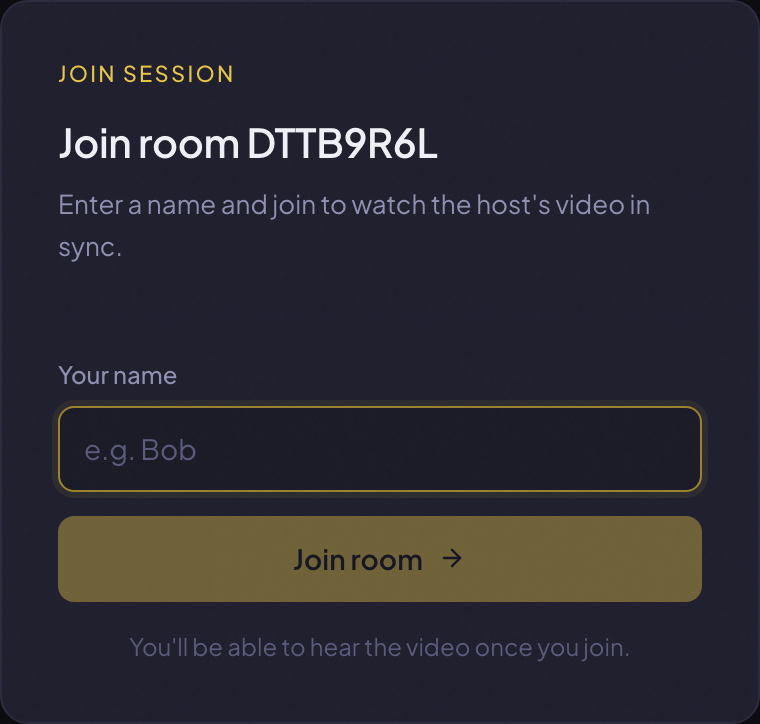
PartyStream requires a link. The host creates a room, copies the invite link, and sends it. Guests click, type a name, and they are in. No app, no account, no server. For a one-off watch party with someone who is not on Discord, this is much easier.
Limits
Discord:
- Screen share quality is capped at 720p/30fps for free users, 1080p/60fps for Nitro.
- Video goes through Discord's servers, adding latency and potential quality degradation.
- No playback sync for local video files.
- No per-viewer quality controls.
- Screen share viewer count is limited by the server's video channel limit (usually 25 for free servers, more for boosted servers).
- Requires a Discord account and the app.
PartyStream:
- Up to 4 guests per room, plus the host.
- The host needs a decent upload connection (the host uploads a separate stream to each guest).
- Supports DRM-free video files, screen shares, and YouTube links.
- The host needs a desktop browser. Guests can use mobile.
- If the host's internet drops, the room ends.
- Voice chat is optional and depends on the host's setup.
When to use which
Use Discord screen share when:
- Your group is already in a Discord voice channel together.
- You want voice conversation alongside the video, not just text reactions.
- You are casually showing a clip, a gameplay moment, or a short video, not watching a full film in sync.
- You do not need per-guest quality controls or a queue.
- Your group has Discord Nitro for 1080p screen share.
Use PartyStream when:
- You are watching a full film or series and everyone needs to be on the same frame.
- You want to stream your own video file, not share your screen.
- You want per-guest quality settings so people on slower connections still get a watchable picture.
- You want a queue of multiple videos with auto-advance.
- You want guests to join from a phone without installing an app.
- You want text chat with emoji reactions and GIFs, not voice.
- Not everyone in the group has a Discord account.
If your group lives on Discord, Discord screen share is the easy default for quick stuff. For a planned movie night where the film is the focus, PartyStream gives you the sync, quality, and chat experience that Discord was not designed for.
Want to try a dedicated watch party?
Create a room