PartyStream is a free watch party app that runs in your browser. One person (the host) picks a video file on their computer and streams it to everyone else. Playback stays in sync, a live chat runs alongside the video, and nobody has to install anything or sign up. This guide covers the whole flow from the host's side and the guest's side.
What you need
- A desktop browser for the host: Chrome, Firefox, or Safari. The host encodes and uploads the video in real time, so a phone is not powerful enough for that part.
- Any modern browser for guests, including phones and tablets.
- A video file in a browser-native format. MP4 with H.264 video and AAC audio works on every browser. WebM with VP8 or VP9 also works. MKV sometimes plays on Chrome when it contains H.264 video, but it is unreliable and will not work on Safari, so convert it to MP4 to be safe. AVI, FLV, HEVC, and AV1 will not stream.
- Decent upload bandwidth on the host. Each guest receives a separate stream, so the host uploads roughly bitrate times guest count. At the default 10 Mbps per guest with a full room of 4 guests, that is about 40 Mbps of upload.
- No account, no email, no install. You can skip straight to step 1.
1. Create a room
Open partystream.com in your browser. Scroll to the action section near the bottom of the landing page, where you will see two cards side by side: Create a room and Join a room.
In the Create a room card, type a display name. This is the name other people in the room will see next to your messages and in the participant list. It can be anything, up to 30 characters, and it is not stored anywhere after the room closes. Then click Create room.

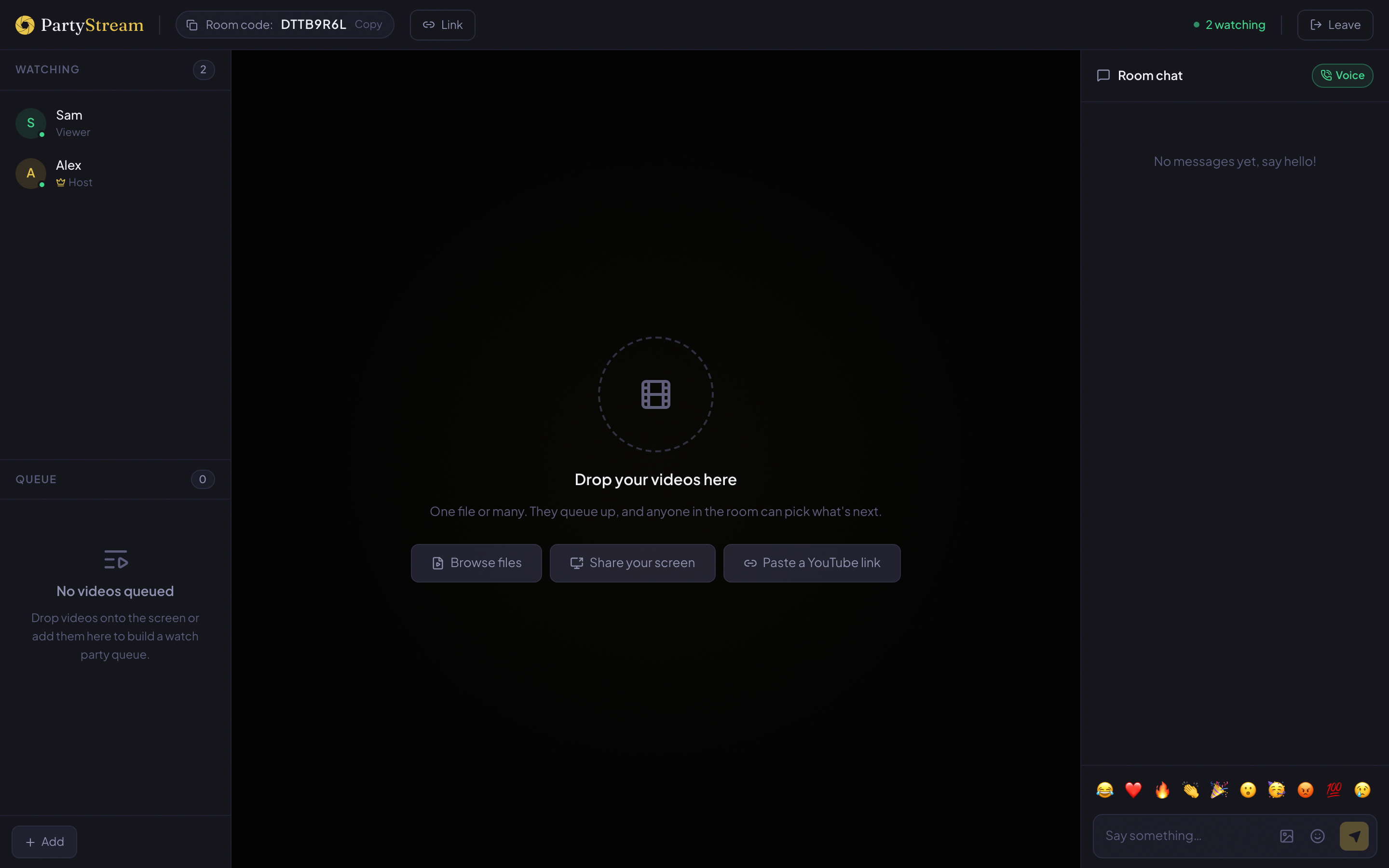
The server hands back a random 8-character room code and your browser jumps straight into the room as the host. You are now in the room view, which looks like this before any video has been added.
2. Share the room code
The room code lives in the top bar, in a pill labeled Room code: followed by 8 characters. Click the pill to copy the code to your clipboard. Next to it, the Link button copies a full invite URL that drops guests straight into the room, no code typing required.

Send either the code or the link to your friends through whatever you normally use: a group chat, an email, a Discord message. There is no public room directory, so only people who have the code or the link can find the room.
3. Guests join
When a guest opens the invite link, they land on the room page. If they came in through the link they skip the code, but they still need to type a display name before they can enter. This is the join gate.
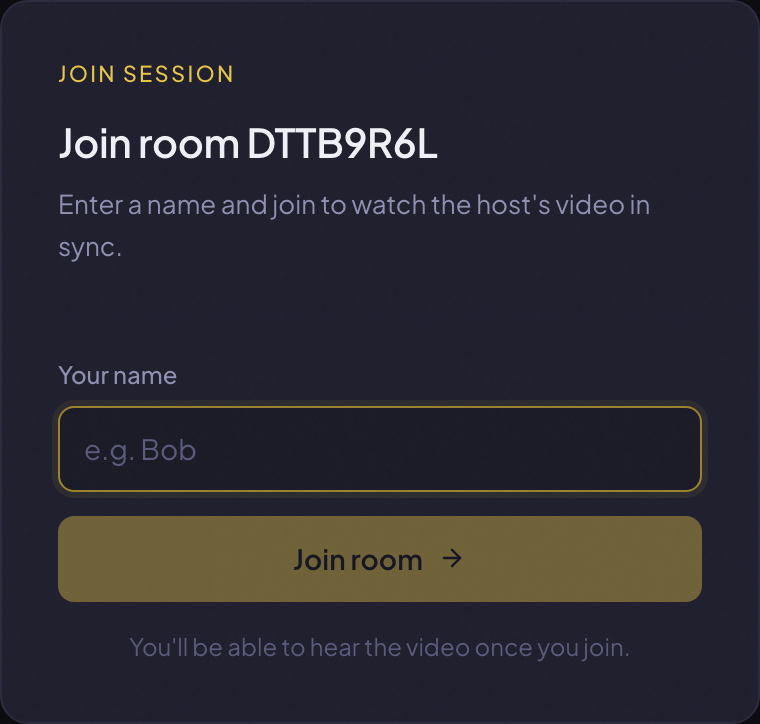
If a guest arrived without a link and only has the code, they use the Join a room card on the landing page instead. They type their name and the 8-character code, then click Join room. The code is case-insensitive, so it does not matter whether they type it uppercase or lowercase.
4. Add a video
Back on the host side, the center of the room is a drop zone with three options. You can drag a video file from your file manager onto it, or click Browse files to open the file picker. You can click Share your screen to stream a browser tab or your whole screen. Or you can click Paste a YouTube link to add a YouTube video by URL.
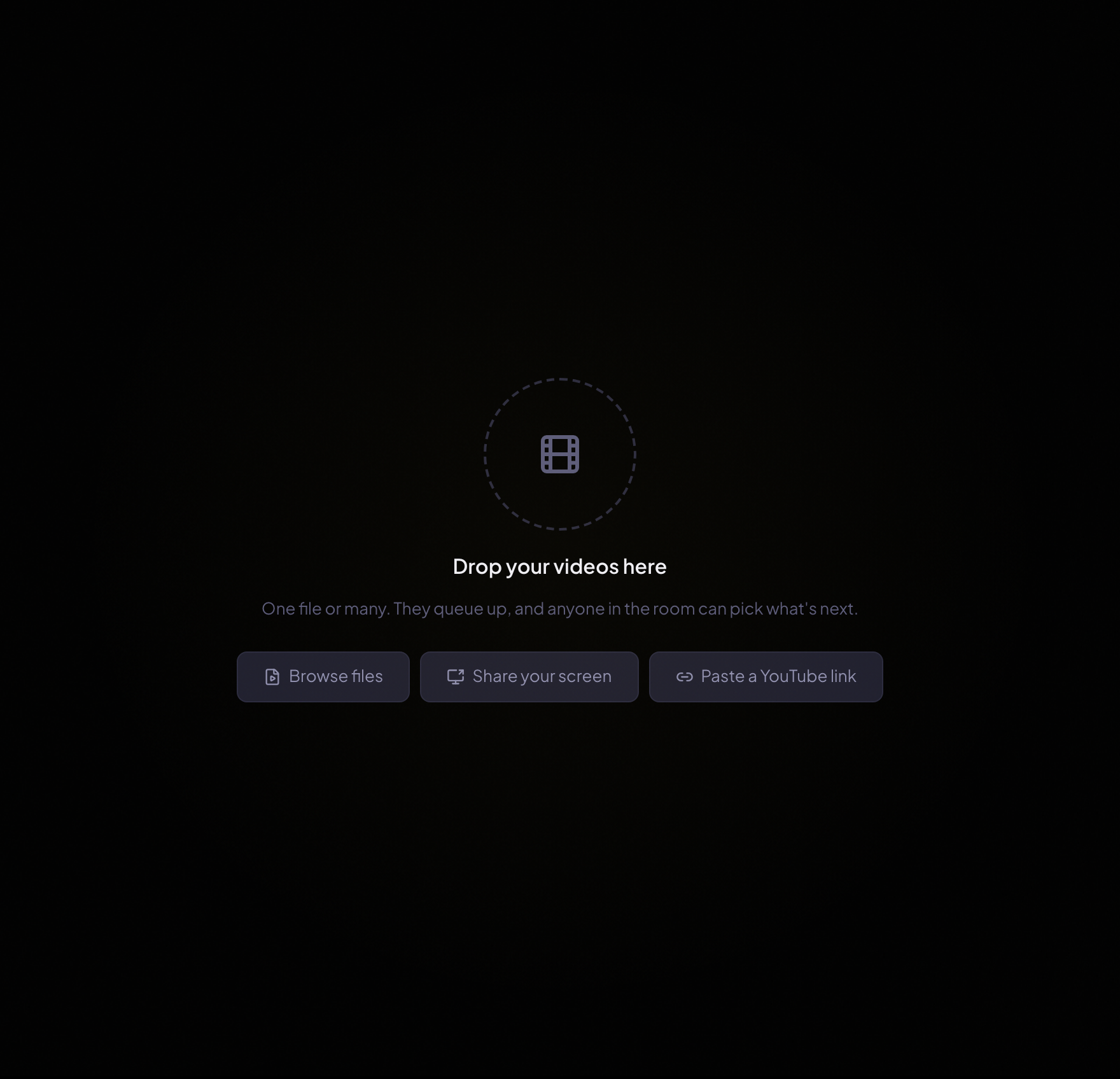
For YouTube links, PartyStream loads the same video on everyone's browser. Each person gets YouTube's native quality, and play, pause, and seek stay in sync. See our YouTube co-watch guide for details.
Once you pick a file, the host browser loads it and starts offering the stream to each guest. For a second or two you will see a Starting stream spinner while the host's browser connects to your guests. When it clears, the video frame is live and ready to play.
You can add more files at once. Selecting several files in the picker, or dropping a handful at once, queues them up in the order you added them. The first file becomes the current one, and the rest sit in the queue waiting their turn.
Adding subtitles
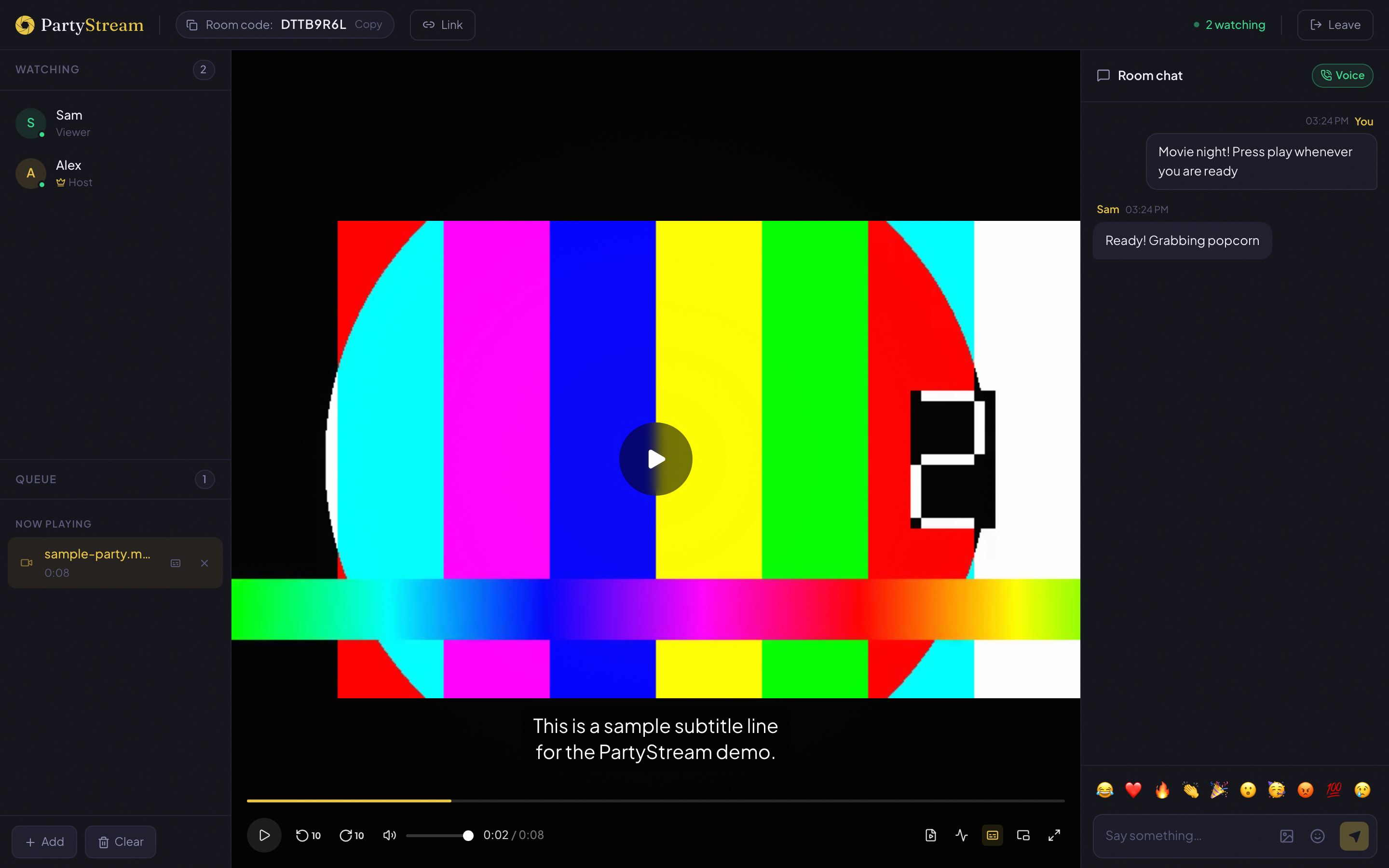
If your video came with a subtitle file, you can attach it so everyone in the room sees the captions. Most movie downloads include a small .srt or .vtt file next to the video. Hover any video in your queue and click the small CC button on that row, then pick the subtitle file. The captions appear over the video for everyone, and each person can switch them off with the CC button in the player if they prefer.
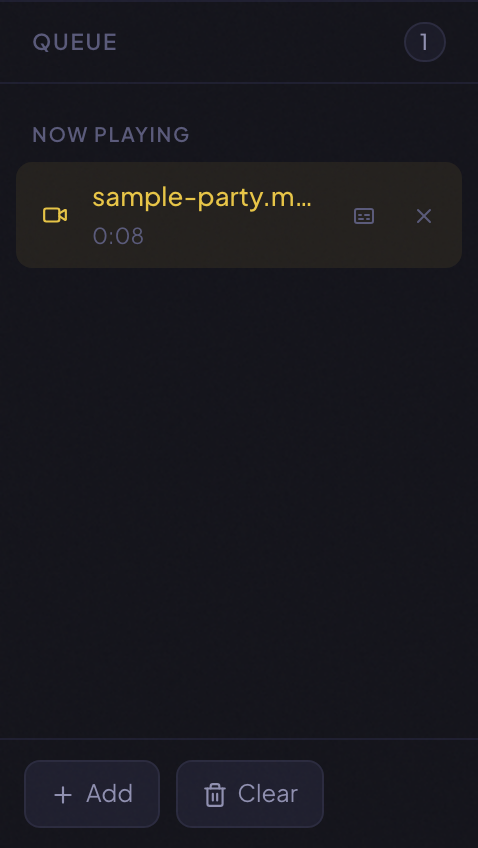
Captions stay attached to that video, so they appear automatically whenever it plays, even if you switch away and come back to it later. YouTube links work a little differently. They use YouTube's own captions, so toggle those with the CC button inside the YouTube player.
5. Watch together
Press play. That single press is the only thing that starts playback, and it starts it for everyone. Play, pause, and seek are all host controls: when you skip forward, every guest's player jumps to the same spot, usually within half a second.
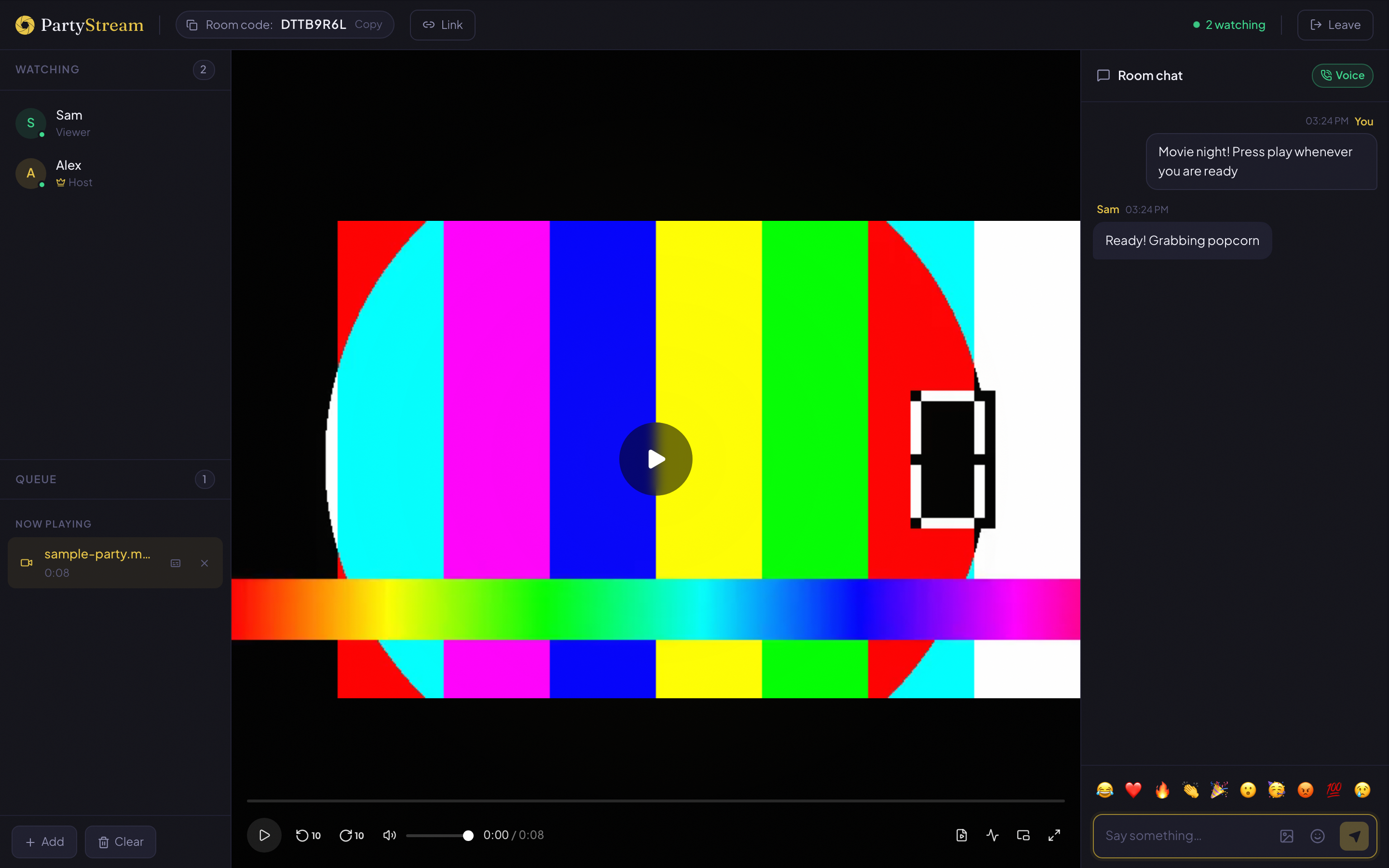
Guests cannot control playback themselves. They get their own volume slider and a quality selector (Auto, High, Medium, Low) so they can match the stream to their connection, but play, pause, and seek are the host's alone. This keeps everyone on the same frame, which is the whole point of a watch party.
Each guest picks their own quality from the controls bar. Auto watches Auto adjusts to the connection speed automatically, so a guest on a flaky connection still gets a watchable picture instead of a buffering spinner. The host sends only what each guest asks for.
6. Chat and react
The right sidebar is the chat. Type a message and press Enter to send it. Shift+Enter adds a line break without sending. Messages appear for everyone in the room in real time. There is no chat history: when someone joins late, they only see messages sent after they arrived, and when the room closes everything is gone.
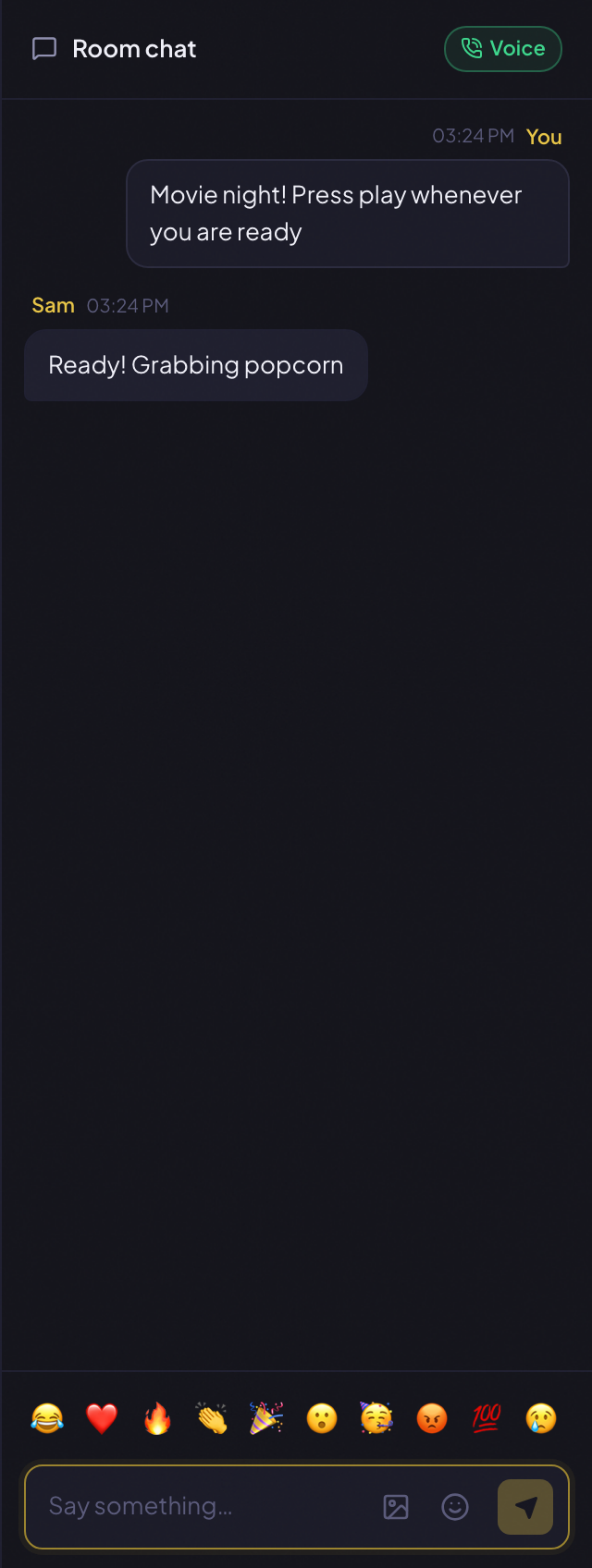
Above the text input is a row of reaction emoji. Clicking one sends a burst that floats up across everyone's screen, not just a static message in the log. It is the closest thing to throwing popcorn at the screen. The smiley button opens a full emoji picker, and the image button opens a GIF search powered by Giphy.
If the host has voice chat enabled, there is also a join-voice button in the chat panel. One click turns on your mic, and everyone who joins can hear each other. Mute when you need to. No second app required.
7. Build a queue
The bottom half of the left sidebar is the queue. When you add more than one file, they stack here in order. The current item is marked Now playing, anything after it is Up next, and anything already watched moves into a Played section that stays visible so you can replay it.
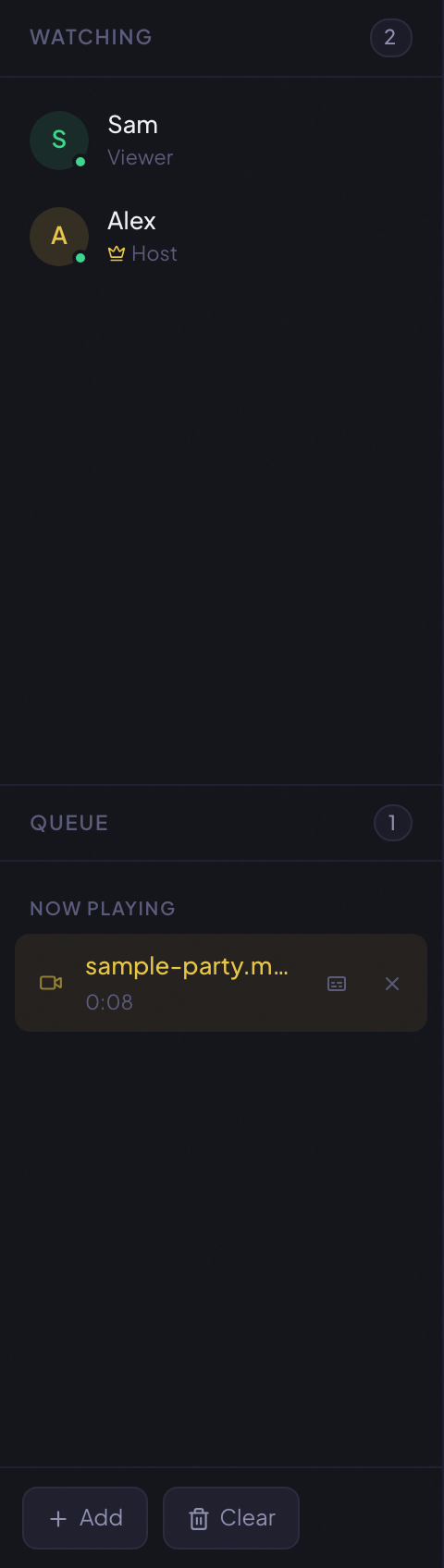
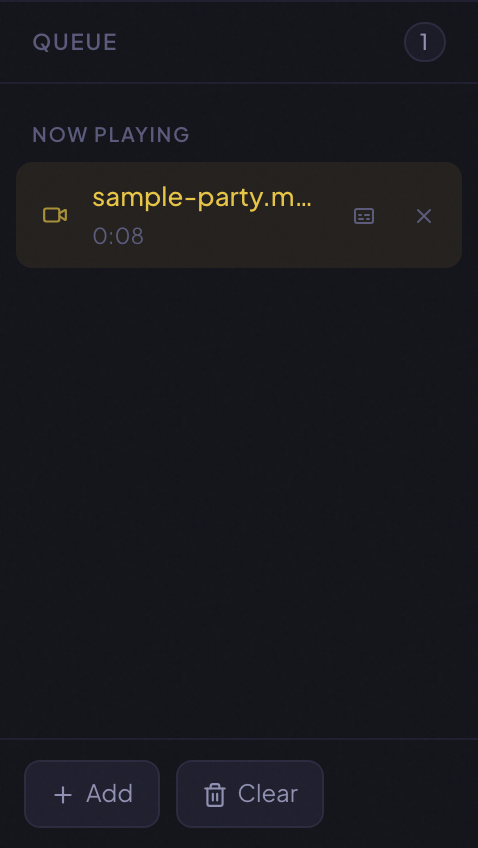
When the current video finishes, PartyStream automatically advances to the next one in the queue. If the queue is empty, it resets the current video to the start and pauses. The host can also click any item in the queue to jump to it, drag items to reorder, click the X to remove one, or use Clear to wipe the list. Guests can click an item to request it, which asks the host to switch.
Rules of the room
A few constraints worth knowing before you invite people, so nobody is surprised mid-movie.
- One host per room. The first person to create the room is the host. A second person trying to join as host is turned away. If the host leaves, the room ends and everyone is disconnected.
- Up to 4 guests, plus the host. The host uploads a separate stream to each guest, so the host's upload bandwidth is the ceiling. With a full room at the default bitrate, plan for roughly 40 Mbps of upload.
- Only the host controls playback. Guests get volume and quality, but play, pause, and seek are the host's. This is what keeps everyone in sync.
- Browser-native formats only. MP4 with H.264 and AAC is the safe choice that works on every browser. WebM with VP8 or VP9 also works. MKV sometimes plays on Chrome when it contains H.264 video, but it is unreliable and will not work on Safari. AVI, FLV, HEVC, and AV1 will not stream. If you hit an unsupported format error, convert the file to MP4.
- Chat is ephemeral. Messages live in server memory for the session and are gone when the room closes. Late joiners do not see earlier messages.
- Anyone with the code can join. There is no authentication. Treat the room code like a password: only share it with people you want in the room.
- The host needs a desktop browser. Guests can join from a phone or tablet, but the host is encoding and uploading in real time, which a phone does not handle well.
Troubleshooting
Guests see a forever spinner
The host has not pressed play yet. Guests cannot start the video themselves. The host needs to hit play once to kick off playback for the room. After that, sync keeps everyone aligned.
“Unsupported format” error on the host
The file is in a container or codec the browser cannot decode for capture. Convert it to MP4 with H.264 video and AAC audio. On a Mac, QuickTime can export to this format. With ffmpeg:
ffmpeg -i your-video.mkv -c:v libx264 -pix_fmt yuv420p -c:a aac your-video.mp4Video is choppy or guests keep buffering
The host's upload is the bottleneck. Have guests drop their quality setting to Medium or Low, which reduces the bitrate the host has to send to each one. If everyone is on the same Wi-Fi and it is still struggling, the host can move closer to the router or switch to a wired connection.
A guest on a different network cannot connect
Some cellular and corporate networks block the direct connection PartyStream relies on. If a guest cannot join, have them try a different network, like a home Wi-Fi connection or a mobile hotspot, and re-enter the room code.
The host's tab got backgrounded and the stream froze
Browsers throttle background tabs, which can stall the capture pipeline. Keep the host tab in the foreground during the movie. The sync-time broadcast keeps running while backgrounded, so the position stays roughly current, but the video frames can stall.
Subtitles aren't showing
First, check the CC button in the player controls is on (it lights up gold when enabled). If the button is not there at all, the current video has no subtitle file attached. Hover the video in the queue and click the CC button on the row to add one. Both .srt and .vtt files work. Subtitles only apply to uploaded video files, not YouTube links, which use YouTube's own captions.
Ready to try it?
Create a room